Debloating Windows 11 is quite a hassle, even after a clean install. It can get tricky to remove certain apps like OneDrive, the XBox Game bar or Copilot and Windows 11 is known to send a lot of telemetry back to Microsoft… So you want to have these settings disabled to protect your privacy.
Optimizing & debloating Windows 11 with Winhance
Many tools exist to debloat Windows 11 – but for me, using the open-source “Winhance” is the quickest and easiest way to:
- Remove bloat and disable privacy invading settings from Windows 11.
- Customize features like the right-click menu, changing the UAC notifications or disabling tons of smaller annoyances
- Overall get the maximum performance and storage out of any Windows 11 PC by disabling many background processes & services.
- Save a lot of time and instantly install over one hundred third party applications like 7-zip, Spotify, other browsers…
The best part is that -in most cases- you can easily reinstall software or reactivate features if you want to.
Downloading and using Winhance to debloat Win11
Winhance can be downloaded from this direct link (Github / official site)
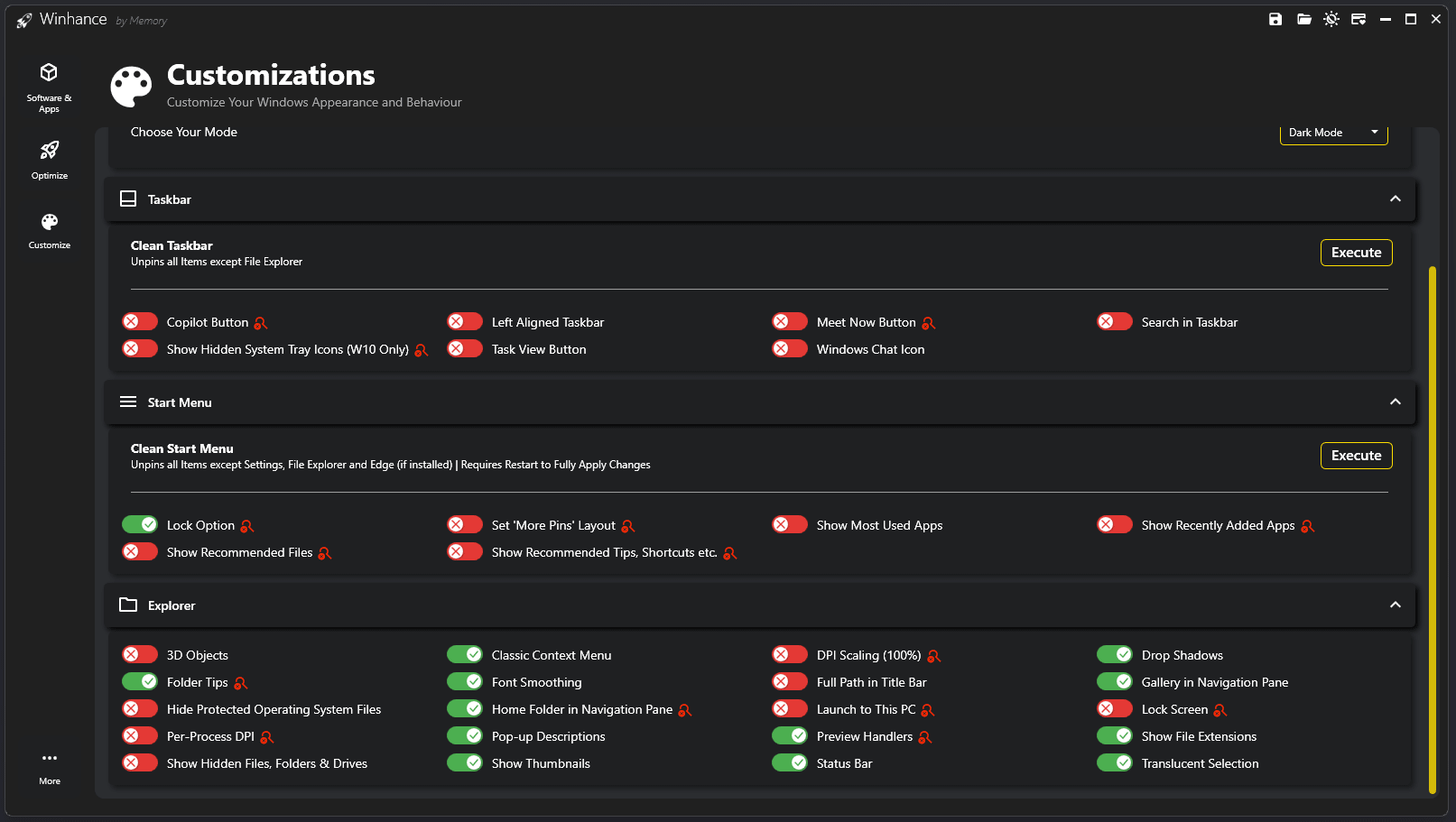
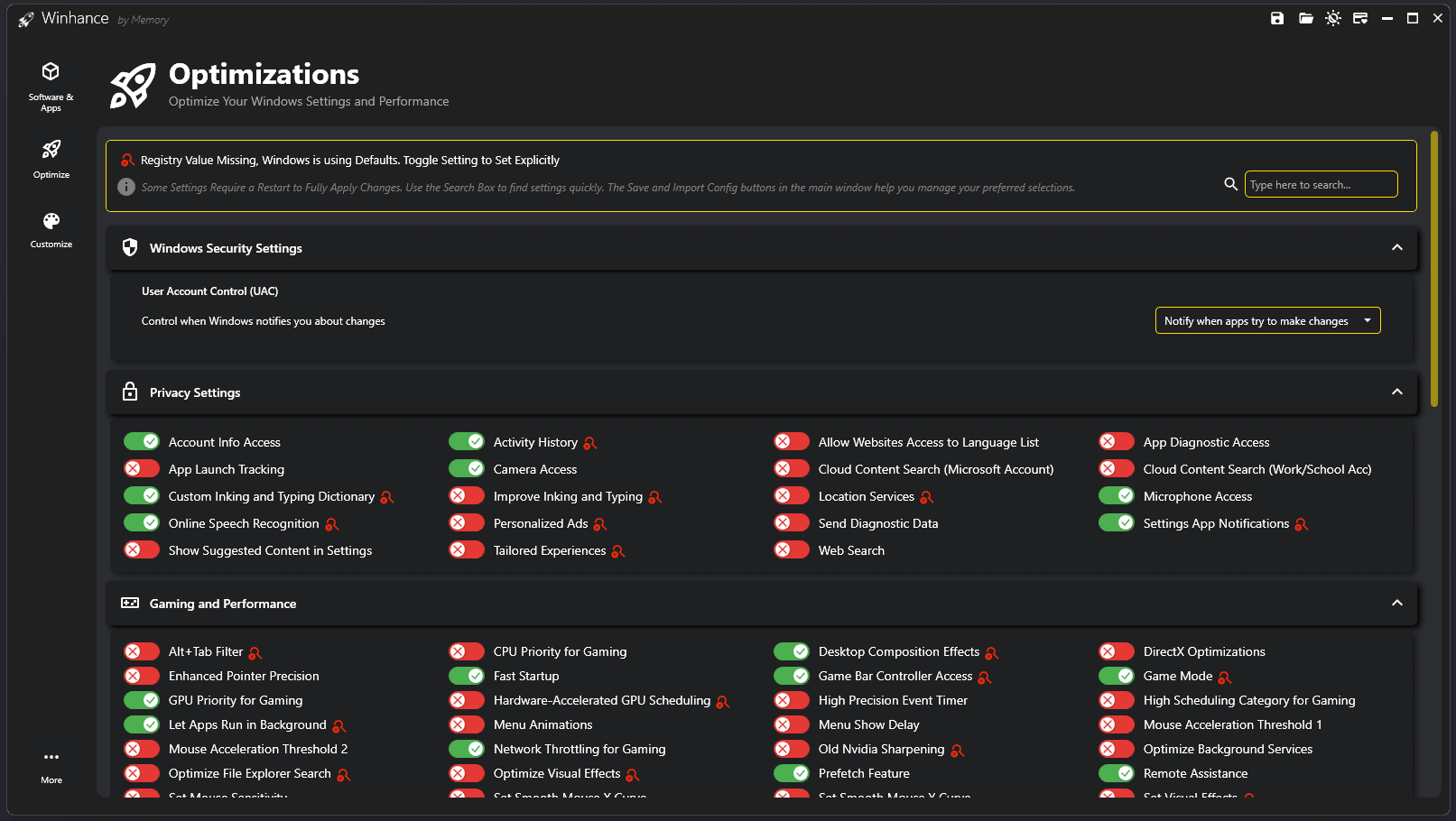
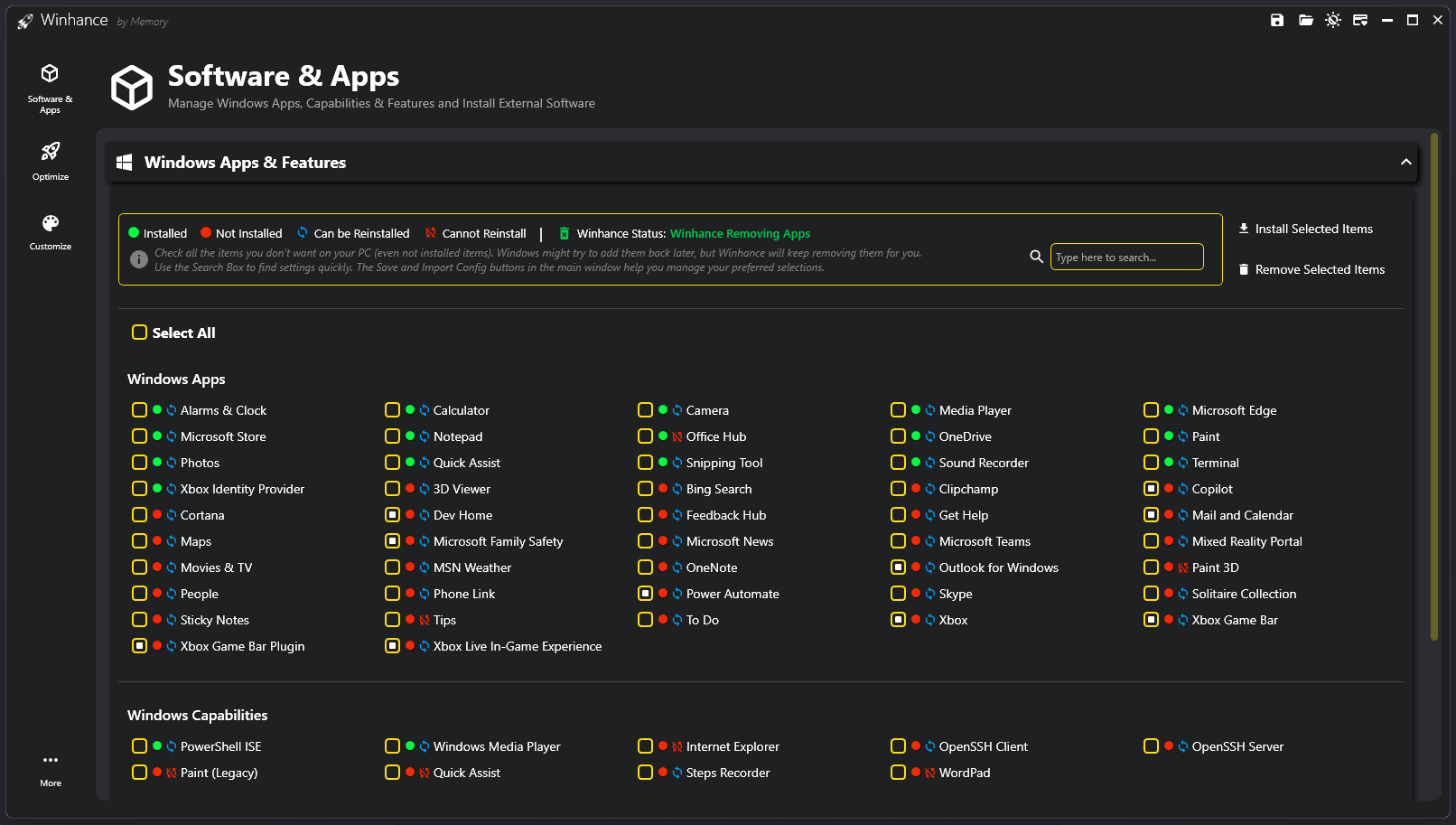
Winhance is pretty self-explanatory, but in the ‘Software & Apps’ section I suggest you first UN-tick the ‘Select all’ and then manually select the items you want to remove or reinstall. Also keep an eye on the symbols, as certain apps cannot get reinstalled through the app, so unless you know what you’re doing be careful with those.
Finally, you can save your configuration for future use on your own or other PC’s for a quick & perfect configuration in a single click. A great timesaver if you often reinstall PC’s or want to help out friends and relatives.
Create your perfect Windows 11 setup ISO with an ‘answer file’
The latest version of Winhance also allows one to create or inject an Answerfile (autounattend.xml) into a Windows iso or bootable USB stick. This slipstreams your debloated and privacy enabled configuration in a fresh installation. I strongly recommend you watch this video to understand what it means:
I can also recommend to just keep it installed. Because after large Windows feature updates, certain apps can and will reappear, and specific privacy-invading settings will get re-enabled(!). So it’s a good idea to do a quick check every few months if everything is still in order. As you can also see in the above video, if you’ve installed with a Winhance created Answerfile, it will automatically keep your setup clean(!)
Anyway, I can really recommend this great tool, developed by ‘Memory’. Make sure to follow him on Youtube, as he shares a lot of great tips and guides as well!